App Store Guideline 4.2 Rejection: When the Reviewer Can't Test Your App
I submitted WhattaRAG to the App Store after months of building. A few days later I got the rejection email.
Guideline 4.2 — Minimum Functionality.
The classic. The one every indie developer dreads because it’s vague enough to mean almost anything.
What WhattaRAG actually does
WhattaRAG is a fully on-device RAG app for iOS. You import documents, ask questions about them, and get answers with citations — all running locally on your iPhone using Apple’s Foundation Models framework and NLContextualEmbedding. Nothing leaves your device. No cloud, no accounts, no telemetry.
Because it depends on Apple Intelligence, it only runs on iPhone 15 Pro or newer, on iOS 26+, with Apple Intelligence enabled in Settings.
That last requirement turned out to be the whole story.
What actually happened
Apple’s reviewer attached a screenshot as evidence of the problem. I opened it and immediately understood everything.
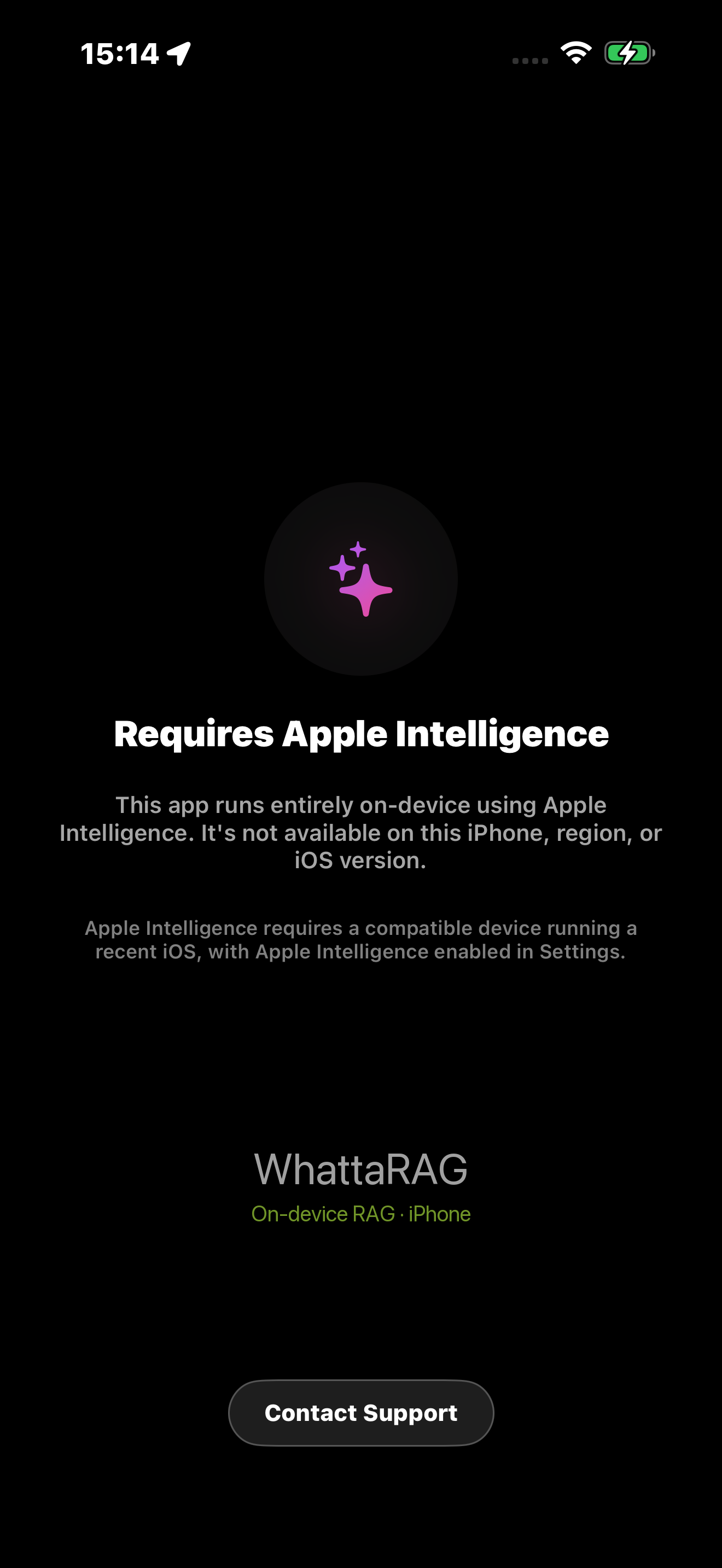 WhattaRAG’s Apple Intelligence availability check — the only screen the reviewer ever reached.
The screenshot showed my Apple Intelligence eligibility gate — the screen that appears when the device or region doesn’t support Apple Intelligence. The reviewer had hit a dead end on their first tap and never got past it.
They didn’t see a broken app. They saw a working app doing exactly what it should: refusing to proceed on unsupported hardware. But from their side of the screen, it looked like minimum functionality because they couldn’t test anything.
What I did
I did not resubmit a new build.
Instead, I replied directly in App Store Connect, pointed at their own screenshot, and explained what they were seeing:
“The screenshot attached shows our Apple Intelligence availability check. This screen appears when the device or region doesn’t have Apple Intelligence enabled. The app requires Apple Intelligence to function, which is why we target iOS 26+ on iPhone 15 Pro and newer. Could you please re-review on a device with Apple Intelligence available and enabled?”
Friendly, specific, and impossible to misread. Their screenshot was the evidence that cleared the rejection.
The follow-up: screenshots
While that was being resolved, Apple came back with a second request: screenshots for the 6.7-inch display size.
The problem: WhattaRAG requires a real physical device with Apple Intelligence to run. I couldn’t just fire up the Simulator and capture screenshots. My test device was a different size.
The fix was simpler than I expected. I took my existing real-device screenshots and resized them to the required 6.7-inch dimensions (1320×2868 px) in Figma. About 20 minutes of work. Apple accepted them.
What I’d do differently
Include explicit review notes from day one. I had review notes in App Store Connect, but they didn’t include a clear statement that the reviewer needed a specific device. Something like:
“This app requires a device with Apple Intelligence enabled (iPhone 15 Pro or newer, iOS 26+). If your review device does not meet these requirements, you will see an eligibility screen and will not be able to test the app’s functionality.”
One sentence. Would have prevented the whole cycle.
Don’t panic on a 4.2 rejection. It’s often not about your product. It can be about a reviewer who had the wrong device, didn’t read the notes, or moved too fast. Reply first, resubmit later.
The outcome
WhattaRAG is live on the App Store. Free, fully on-device, no paywall.
The rejection cost me about a week of calendar time — not engineering time, just waiting and replying. In retrospect it was a minor bureaucratic friction, not a signal about the product.
If you’re building something that depends on Apple Intelligence or any other hardware-specific capability, be explicit in your review notes. Make it easy for a reviewer on the wrong device to understand what they’re seeing before they file it as a bug.
WhattaRAG is available on the App Store.
Feedback: altocodelabs.com/whattarag-feedback.html